

About the Download Process
At CepteMOD we keep growing step by step. Along with this growth, to cover infrastructure and technical costs, we are switching to an ad-supported model on the site.
But don’t worry — these ads will not be the intrusive kind that cover the whole site. While downloading a file, before reaching the Google Drive page, you’ll simply go through a few quick steps (like “skip ad / continue”).
Below you can see, step by step, how this works on an example file.
Important: When you tap the buttons, pop-up ad tabs may open in the background. Close them and make sure you are on the link.tl page. You’ll complete just 2 short steps before reaching the Google Drive page.
You reach the download page
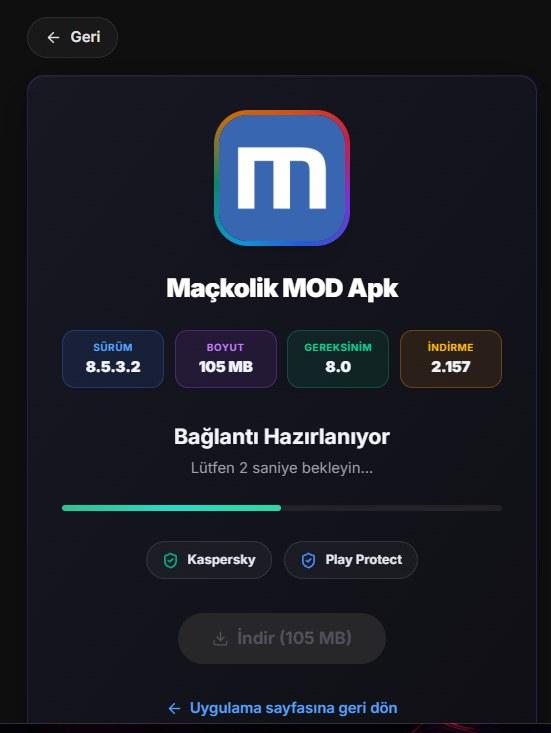
First you reach the file’s download page. Once the link is ready, tap the “Download” button to begin.
Verify you’re not a robot
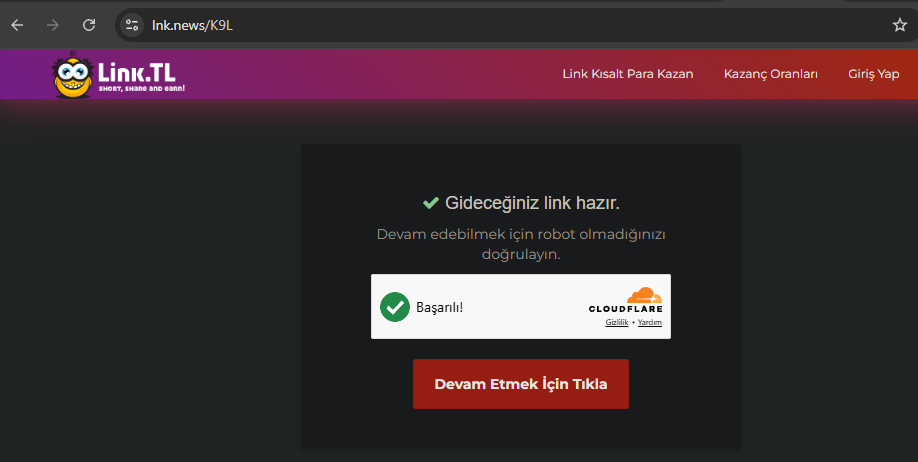
A short verification screen appears. Tick the box and tap “Click to Continue”. (Remember to close any pop-ups that open in the background.)
Wait for the short countdown
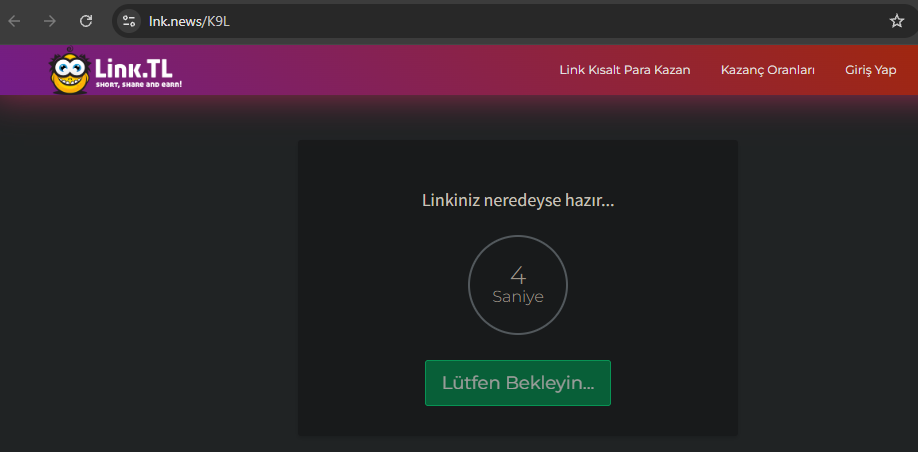
A few-seconds countdown appears. When it finishes, tap the “continue / please wait” button.
Google Drive opens
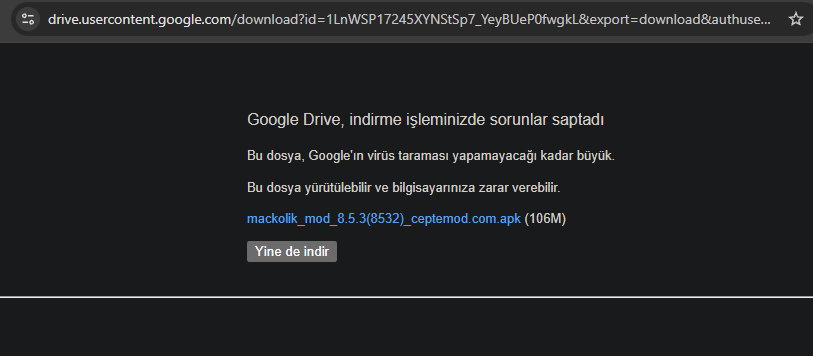
In the final step the Google Drive download screen opens. Tap “Download anyway” to save the file; then install it as usual.
As you can see, you only complete 2 short steps (verification + countdown) before reaching the Google Drive page. This small support helps CepteMOD stay alive and serve you better. Thank you for your support. 🙂